
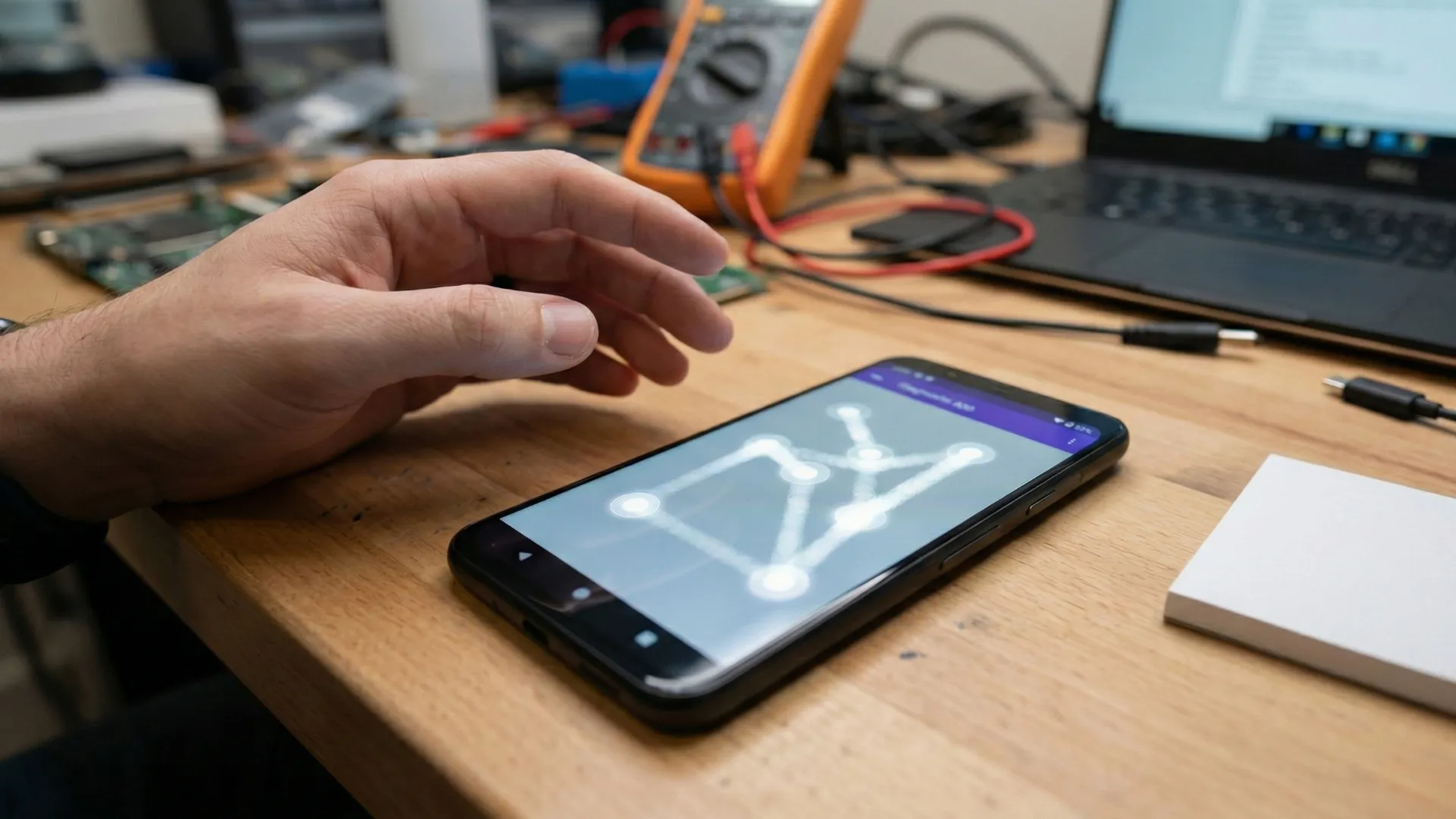
In 2025, many Android users in the USA have started reporting a strange new issue with their smartphones. Their phone’s screen begins to move, tap, and open apps on its own—even when they are not touching it. This problem is now commonly known as the “Phantom Touch Issue” or “Ghost Touch Problem.”
This issue is becoming more common on mid-range and budget phones, especially after the latest Android updates. Users say their phones behave as if someone else is controlling the screen. It can be annoying, sometimes scary, and often makes the phone almost impossible to use.
The good news?
Most Phantom Touch problems can be fixed easily at home without spending money.
This post explains what causes the problem and provides simple, step-by-step solutions.
What Exactly Is the Phantom Touch Problem?
Phantom Touch means your smartphone screen registers touches that you did not make.
It can show up in many ways:
- Apps open automatically
- Keyboard types random characters
- Screen scrolls up or down by itself
- Multiple touch points appear at the same time
- Phone freezes because of constant ghost taps
- The screen behaves as if someone is dragging their finger across it
This issue is new for many users in the USA in 2025, and it appears mostly after system updates or when the device overheats.
Why Does Phantom Touch Happen? (Main Causes)
Tech experts and user reports point to several common causes. Most of them are simple and fixable.
1. Software Bug After New Update
Android updates sometimes have bugs that break touchscreen drivers.
When this happens, the phone misreads touch signals.
2. Overheating During Heavy Use
If the phone temperature reaches around 104°F (40°C) or higher, the touchscreen becomes unstable.
This is very common during:
- Heavy gaming
- Long video streaming
- Charging while using phone
- Using the phone outdoors in hot weather
3. Poor-Quality Screen Protector
Thick or cheap tempered glass can interfere with touch sensitivity and create random touch signals.
4. Dust, Moisture, or Sweat on the Screen Edges
Even tiny particles or light moisture can trigger ghost touches.
This happens a lot when users keep their phone in pockets or have sweaty hands.
5. Faulty Charger or Cable
Using a non-original or damaged USB cable affects electrical flow and leads to touch problems.
This issue appears mostly while charging.
6. Hardware Damage
If the screen is cracked or the internal touch layer (digitizer) is damaged, phantom touches are common.
How to Fix the Phantom Touch Issue (Simple 100% Working Methods)
Below are human-friendly, step-by-step solutions that actually work for most users.
✅ 1. Restart Your Phone (Instant Fix for Many Cases)
Sometimes the touch driver just glitches.
Steps:
- Hold the power button
- Tap “Restart”
- Wait for the device to fully boot
This alone can fix temporary software errors.
✅ 2. Remove the Screen Protector
More than 40% of users report that the real cause was a bad tempered glass.
If your protector is:
- Cheap
- Cracked
- Thick
- Not properly aligned
…it can cause ghost touches.
Try using the phone without the screen protector for 5 minutes.
If the problem disappears, replace it with a good-quality one.
✅ 3. Cool Down the Phone
A hot phone becomes more sensitive and unstable.
How to cool it:
- Remove the case
- Stop gaming or watching long videos
- Close all apps
- Stop charging
- Keep phone near a fan or AC vent
- Keep it on a table (not in hand or pocket)
After cooling, the touchscreen often becomes stable again.
✅ 4. Clean the Screen and Corners
Moisture and dust can create false electrical signals.
Steps:
- Turn off the phone
- Use a soft microfiber cloth
- Clean the edges properly
- Let it dry for 2–3 minutes
- Turn it back on
Do NOT use water or liquid cleaner.
✅ 5. Disconnect the Charger
If phantom touches happen while charging, the cable or adapter is the culprit.
Solution:
- Use the original cable
- Try another charger
- Avoid cheap third-party chargers
- Do not use phone while charging
This instantly solves the issue for many people.
✅ 6. Update the Phone (Software Fix)
Android releases quick patches for bugs.
Steps:
Go to:
Settings → System → Software Update → Check for Update
If a new patch is available, install it.
✅ 7. Reset Touch Settings (Clear System UI Cache)
This is a safe and effective method.
Steps:
- Go to Settings → Apps
- Find System UI
- Tap Storage
- Tap Clear Cache
This resets touch behavior without deleting any data.
✅ 8. Test in Safe Mode
Safe Mode turns off all third-party apps.
Steps:
- Hold the power button
- Long-press “Power Off”
- Tap “Reboot to Safe Mode”
If ghost touches stop in Safe Mode → an app is causing the issue.
If ghost touches continue → hardware or system bug.
✅ 9. Factory Reset (Last Option)
Use this only if nothing else works.
Steps:
- Backup your data
- Go to Settings → System → Reset Options
- Tap “Erase All Data”
This removes corrupted system files.
When You Need to Visit a Service Center
You should get professional help if:
- The screen is cracked
- Phone has water damage
- Ghost touches continue even after factory reset
- Touch does not respond at all
- Digitizer is damaged
- Device is under warranty
Hardware faults cannot be fixed at home.
Can This Problem Be Prevented?
Yes, here are simple tips:
- Use a good-quality screen protector
- Avoid cheap chargers
- Keep the phone cool
- Don’t use the phone while charging
- Clean the screen regularly
- Install updates on time
- Avoid dropping your phone
These small habits help prevent the issue.
The Phantom Touch Problem is one of the newest and most annoying issues Android users in the USA are facing in 2025. It makes the phone difficult to control, opens random apps, and creates a frustrating user experience. But the good news is that most causes are simple — screen protectors, moisture, overheating, or chargers.
By following the solutions above, you can fix the problem at home without any technical knowledge. And if nothing works, a service center visit usually solves the issue completely.